
· By HeyData team
Series: Lesser-known Qlik Sense functions and keywords: a series · article 13 of 13
Class, Match, WildMatch, Pick: banding and mapping without a lookup table
If(Country = 'France' or Country = 'Belgique' or Country = 'Suisse', …), then a second nested If(), then a third: most Qlik scripts contain some. These cascades are hard to read and hard to fix. Four functions, usable in the script as well as in charts, replace them: Class() to split into bands, Match() and its variants to test a list, Pick() to choose a value by position.
This article is part of our series on lesser-known Qlik Sense functions and keywords. It is based on the Qlik help; links are at the end of the article.
Match() and its variants: the position in a list
Match(Country, 'France', 'Belgique', 'Suisse') compares the value with each item in the list and returns the position of the first match: 1 for France, 2 for Belgique, 3 for Suisse, 0 if nothing matches. Since 0 means false and any other number true, the function directly replaces a chain of or:
If(Match(Country, 'France', 'Belgique', 'Suisse'), 'Europe', 'Other')Three variants differ in how they compare:
Match()is case-sensitive:francedoes not match'France';MixMatch()ignores case;WildMatch()ignores it too, and accepts wildcards:*for any sequence of characters,?for a single character.
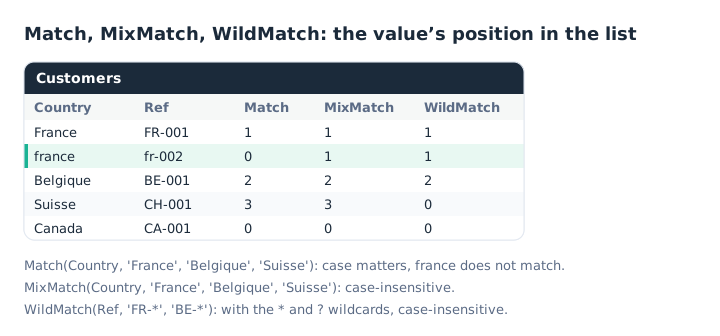
One missing capital letter is enough to make Match() fail.
On hand-entered data, MixMatch() is often the safest choice. These functions also filter at load time:
Europe:
NOCONCATENATE LOAD * RESIDENT Customers
WHERE MixMatch(Country, 'France', 'Belgique', 'Suisse');
Another, lesser-known use: custom sorting. In a chart’s properties, the Sort by expression option accepts Match(Country, 'Suisse', 'Belgique', 'France'): the countries are shown in list order, whatever the alphabetical order. In ascending order, values missing from the list, which equal 0, come first.
Pick(): choosing by position
Pick(n, expr1, expr2, …) returns the nth expression in the list. On its own, it turns a code into a label:
Pick(CategoryCode, 'Electronics', 'Accessories', 'Office equipment')Combined with Match(), it becomes the equivalent of a CASE: Match() finds the position, Pick() returns the matching value. The Qlik help points out one precaution: n must be between 1 and the number of expressions, yet Match() returns 0 when nothing matches. Hence the 1 +, which reserves the first position for a default value.
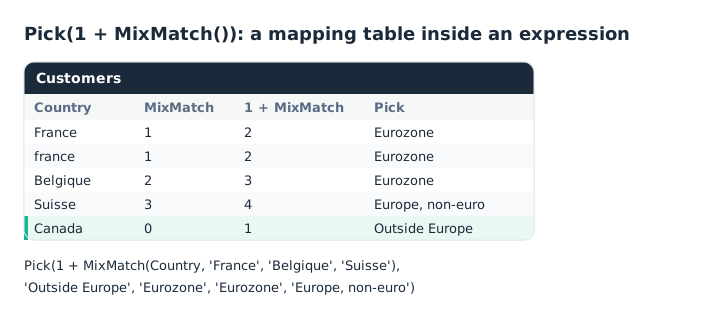
Canada is not in the list: the default value, in first position, takes over.
The same pair chooses a calculation, not just a label: our article on synthetic dimensions uses it to build a KPI table.
Beyond a dozen values, or when the mapping is maintained by business users in a file, a mapping table loaded with MAPPING LOAD and applied with ApplyMap() remains easier to maintain.
Class(): bands in one function
Class(Amount, 50) puts an amount into a band of width 50 and returns a dual value:
- the text describes the band, in the form
50 <= x < 100; - the number is the lower bound, 50.
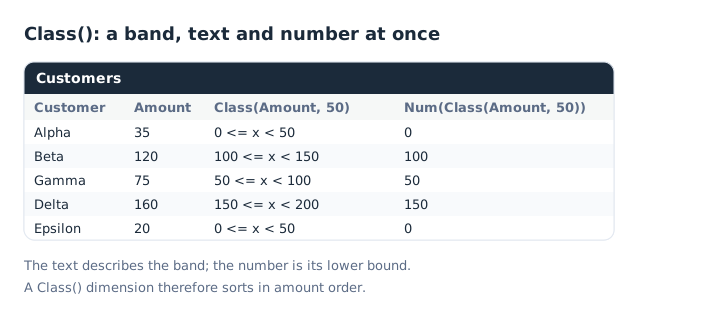
Text for display, the lower bound for sorting.
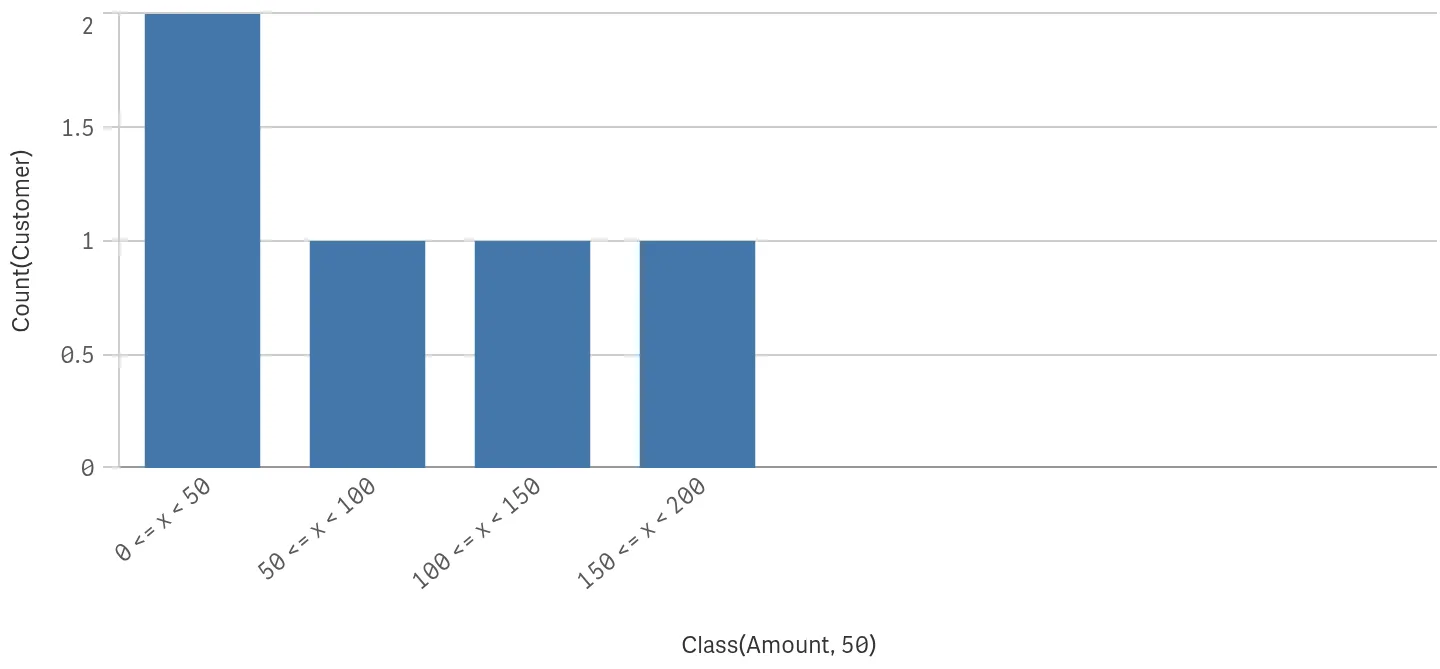
In Qlik Cloud, sorted by numeric value: 100 <= x < 150 comes after 50 <= x < 100, not before as in an alphabetical sort.
Thanks to the number, a dimension built with Class() sorts in amount order, not in the alphabetical order of its labels: our article on Dual() explains this mechanism. Two optional arguments adjust the result:
Class(Amount, 50, 'amount')       // 50 <= amount < 100: a label in place of the x
Class(Amount, 50, 'x', 25)        // bands shifted by 25: 25 <= x < 75, 75 <= x < 125…
Computed in the script rather than in a calculated dimension, the band becomes a field like any other: selectable, and computed only once.
Key takeaways
- Match() returns a position. 0 if nothing matches, which makes it a ready-made condition.
- Three variants, three comparisons. Match() is case-sensitive, MixMatch() is not, WildMatch() accepts wildcards.
- Match() sorts too. In a sort by expression, it imposes the list order.
- Pick(1 + Match()) maps. The 1 + reserves the first position for the default value.
- Class() splits into bands. Readable text, and the lower bound as a number for sorting.
- A table beyond a few values. MAPPING LOAD and ApplyMap() are easier to maintain.
Try it in Qlik Sense
This script loads the diagrams’ data INLINE and computes the zone, the band and the reference check at load time. Paste it into the data load editor of an empty app and reload. Then build the table described in the comments.
// Class, Match, WildMatch and Pick in Qlik Sense: try-it script (HeyData)
// Paste it into the data load editor of an empty app, reload,
// then build the table described in the comments.
Customers:
LOAD *,
     Pick(1 + MixMatch(Country, 'France', 'Belgique', 'Suisse'),
          'Outside Europe', 'Eurozone', 'Eurozone', 'Europe, non-euro') as Zone,
     Class(Amount, 50) as AmountBand,
     If(WildMatch(Ref, 'FR-*', 'BE-*'), 'Yes', 'No') as RefFrBe;
LOAD * INLINE [
Customer, Country, Ref, Amount
Alpha, France, FR-001, 35
Beta, france, fr-002, 120
Gamma, Belgique, BE-001, 75
Delta, Suisse, CH-001, 160
Epsilon, Canada, CA-001, 20
];

// Table with the Customer, Country, Zone, AmountBand and RefFrBe dimensions, and the measures:
//   Only(Match(Country, 'France', 'Belgique', 'Suisse'))      → Beta: 0 (case)
//   Only(MixMatch(Country, 'France', 'Belgique', 'Suisse'))   → Beta: 1
//   Only(WildMatch(Ref, 'FR-*', 'BE-*'))                      → Beta: 1, Delta: 0
//   Only(Num(AmountBand))                                     → the band's lower bound
//
// Custom sort: in the sorting of the Country dimension, choose Sort by expression
//   MixMatch(Country, 'Suisse', 'Belgique', 'France')        → Canada (0), Suisse, Belgique, France and france
Sources
- Qlik Cloud help: Match, position, case sensitivity and custom sorting.
- Qlik Cloud help: MixMatch and WildMatch, case-insensitive comparison and wildcards.
- Qlik Cloud help: Pick, including the combination of Pick and Match with a default value.
- Qlik Cloud help: Class, band width, label and offset.
Text and examples are by HeyData. This article is part of our series on lesser-known Qlik Sense functions and keywords: explore the series.