
· By HeyData team
Series: Henric Cronström’s Technical Briefs, revisited for Qlik Sense · article 3 of 7
Generic keys in Qlik Sense: linking data that do not share the same granularity
Some modelling questions have no clean answer in a classic star schema: a budget entered per category next to sales per product, a security rule such as “this customer OR this product”, several fact tables that do not share the same keys. Generic keys solve all three with a single idea: a key value can stand for one element, a group of elements or every element.
This article summarises the Technical Brief “Generic Keys” by Henric Cronström (Qlik, October 2012) and adapts it to Qlik Sense. His technical papers remain references: we revisit them with today’s tools.
The problem
In a Qlik model, a key links two tables through identical values: ProductID 3 in the facts joins ProductID 3 in the products, and nothing else. This breaks down in three situations:
- security with OR logic: a user sees all products for two customers, and also all customers for two products. Section Access combines reduction fields with an AND;
- facts with mixed granularity: actual and budget are concatenated into one fact table, but the budget is entered at a more aggregated level;
- fact tables that are heterogeneous: sales, visits and targets do not have the same keys, and linking them directly creates circular references.
Do not confuse this with a composite key. A composite key concatenates several keys into one. A generic key, often held in a single field, contains symbolic values that represent several real keys. As Henric Cronström points out, most apps do not need one.
The principle: a dimensional link table
The fact table no longer points directly at the dimension. It carries a generic key, here %ProductID, which joins a dimensional link table. That table translates each symbol into real products: a product symbol to one product, a group symbol to every product in the group, and <ANY> to all products.
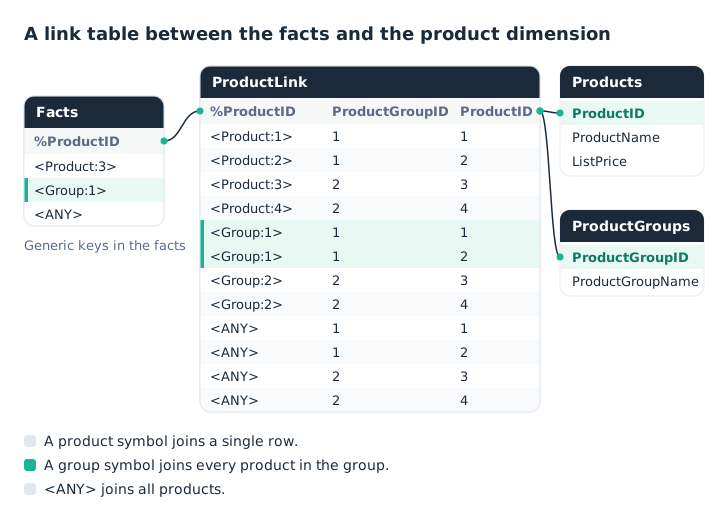
The link table translates each symbol into real products.
The link table is built in the data load editor, with one LOAD per type of symbol:
ProductLink:
LOAD '<Product:' & ProductID & '>'    AS %ProductID, ProductGroupID, ProductID
RESIDENT Products;

CONCATENATE (ProductLink)
LOAD '<Group:' & ProductGroupID & '>' AS %ProductID, ProductGroupID, ProductID
RESIDENT Products;

CONCATENATE (ProductLink)
LOAD '<ANY>'                          AS %ProductID, ProductGroupID, ProductID
RESIDENT Products;

// The group key now lives in the link table only
DROP FIELD ProductGroupID FROM Products;
Two rules follow. First, the group table links to the link table, not to the product table: some fact rows concern a group without naming a product. Second, each symbol must state which field it refers to. Group 1 and product 1 must never produce the same value. A prefix (<Group:1>) or a position in a concatenated key (1|<ANY>) does the job. Both notations are equally valid.
The Data Manager does not offer these successive loads. The data model viewer then serves as a check: the link table must sit between the facts and the dimensions, with no synthetic key.
Inclusive or exclusive symbols
A group symbol can be inclusive: it joins every element of the group, as above. It can also be exclusive: it joins the group only, and no element. In that case, <ANY> gives way to <N/A>, or to a null value on the ProductID side.
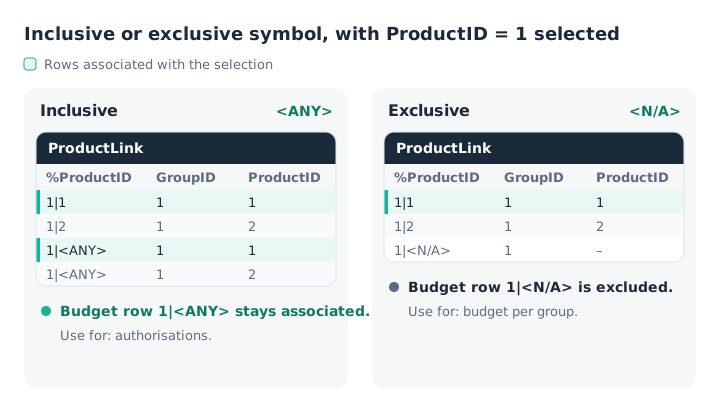
The same group, two behaviours when a product is selected.
The choice depends on the use case. For an authorisation, the symbol must be inclusive: an “all products” rule must reach every product, otherwise the reduction removes legitimate data. For a budget per group, it must be exclusive. Once a product is selected, the group budget no longer makes sense: it is better for it to disappear.
Case 1: OR-based authorisations
A reduction on a single field, or on several fields combined with AND, needs no generic key. An OR between fields does. Take a rules table where DAVID sees customers 5 and 7 for all products, or products 6 and 7 for all customers.
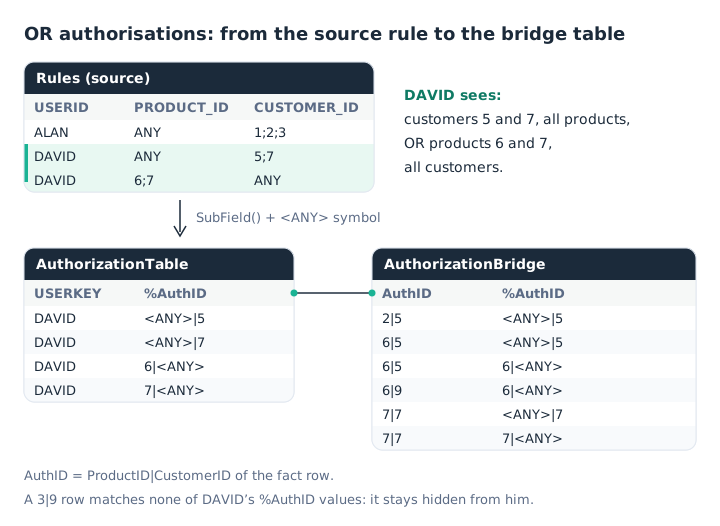
The bridge table links each transaction to the rules that authorise it.
Step one: expand the rules with SubField(). Two calls in the same LOAD produce every product-customer combination.
AuthorizationTable:
LOAD USERKEY,
     If(Product = 'ANY', '<ANY>', Product) & '|' &
     If(Customer = 'ANY', '<ANY>', Customer) AS %AuthID;
LOAD Upper(USERID)               AS USERKEY,
     SubField(PRODUCT_ID, ';')  AS Product,
     SubField(CUSTOMER_ID, ';') AS Customer
FROM [lib://Security/Authorizations.xlsx]
(ooxml, embedded labels, table is Rules);
Step two: give each fact row an AuthID key in the same format. The customer sits in the order header; ApplyMap() fetches it without a join.
OrderToCustomer:
MAPPING LOAD OrderID, CustomerID RESIDENT Orders;

OrderDetails:
LOAD *,
     ProductID & '|' & ApplyMap('OrderToCustomer', OrderID, 'NONE') AS AuthID
FROM [lib://Sales/OrderDetails.qvd] (qvd);
Step three: the bridge table. Generating every possible combination would make it huge. So we start from the transactions and, through a preceding LOAD, keep only the keys present in the rules.
AuthorizationBridge:
LOAD DISTINCT * WHERE Exists(%AuthID);
LOAD AuthID, AuthID AS %AuthID RESIDENT OrderDetails;

CONCATENATE (AuthorizationBridge)
LOAD DISTINCT * WHERE Exists(%AuthID);
LOAD AuthID, '<ANY>|' & ApplyMap('OrderToCustomer', OrderID, 'NONE') AS %AuthID RESIDENT OrderDetails;

CONCATENATE (AuthorizationBridge)
LOAD DISTINCT * WHERE Exists(%AuthID);
LOAD AuthID, ProductID & '|<ANY>' AS %AuthID RESIDENT OrderDetails;

CONCATENATE (AuthorizationBridge)
LOAD DISTINCT * WHERE Exists(%AuthID);
LOAD AuthID, '<ANY>|<ANY>' AS %AuthID RESIDENT OrderDetails;
What remains is Section Access, which reduces on USERKEY. In Qlik Sense, Section Access field names and values are upper case, hence the Upper() on both sides.
Section Access;
LOAD DISTINCT
    ACCESS,
    Upper(USERID) AS USERID,
    Upper(USERID) AS USERKEY
FROM [lib://Security/Authorizations.xlsx]
(ooxml, embedded labels, table is Rules);
Section Application;
Three points specific to Qlik Sense. On client-managed, an INTERNAL\SA_SCHEDULER row with ADMIN access is still needed for scheduled reloads. On SaaS, the USERID format depends on the identity provider; the USER.EMAIL column can replace it. Finally, reduction through QlikView Publisher, mentioned as an alternative in the original paper, has no direct equivalent: Section Access does the job.
Case 2: actual and budget in one table
Concatenating actual and budget into a single fact table remains the simplest way to compare them. The difficulty lies in the levels of detail:
| Axis | Actual | Budget |
|---|---|---|
| Geography | CustomerID | CountryID |
| Product | ProductID | CategoryID |
| Organisation | SalesRepID | SalesUnitID |
| Time | day | month |
Each axis gets a generic key shaped as group|element. Actual builds it from the element and fetches the group with ApplyMap(). Budget puts the exclusive symbol <N/A> in place of the element.
LET vNA = '<N/A>';  // one single definition for the exclusive symbol

CustomerToCountry: MAPPING LOAD CustomerID, CountryID   RESIDENT Customers;
RepToSalesUnit:    MAPPING LOAD SalesRepID, SalesUnitID RESIDENT SalesReps;
ProductToCategory: MAPPING LOAD ProductID,  CategoryID  RESIDENT Products;

Facts:
LOAD Amount, OrderID, ShipperID,
     ApplyMap('CustomerToCountry', CustomerID, Null()) & '|' & CustomerID AS %CustomerID,
     ApplyMap('RepToSalesUnit', SalesRepID, Null())    & '|' & SalesRepID AS %SalesRepID,
     ApplyMap('ProductToCategory', ProductID, Null())  & '|' & ProductID  AS %ProductID,
     Num(MonthStart(OrderDate)) & '|' & Num(Floor(OrderDate))           AS %OrderDate,
     'Actual' AS Type
FROM [lib://Sales/ActualNumbers.qvd] (qvd);

CONCATENATE (Facts)
LOAD Amount,
     CountryID   & '|$(vNA)'                AS %CustomerID,
     SalesUnitID & '|$(vNA)'                AS %SalesRepID,
     CategoryID  & '|$(vNA)'                AS %ProductID,
     Num(MakeDate(Year, Month)) & '|$(vNA)' AS %OrderDate,
     'Budget' AS Type
FROM [lib://Sales/Budget.qvd] (qvd);
Each axis then gets its own link table, built as above but with exclusive symbols:
ProductLink:
LOAD CategoryID & '|' & ProductID AS %ProductID, CategoryID, ProductID
RESIDENT Products;

CONCATENATE (ProductLink)
LOAD DISTINCT CategoryID & '|$(vNA)' AS %ProductID, CategoryID, Null() AS ProductID
RESIDENT Products;

DROP FIELD CategoryID FROM Products;
Dimension tables do not keep the key of their group: it lives in the link table. The Type field works as a dimension in a visualisation, or as a filter in an expression such as Sum({<Type={'Budget'}>} Amount).
Case 3: several fact tables and a master link table
When the facts are too different to be concatenated, generic keys are combined with a master link table. The original example comes from the pharmaceutical industry: sales per package and per physician, visits by sales reps, monthly targets.
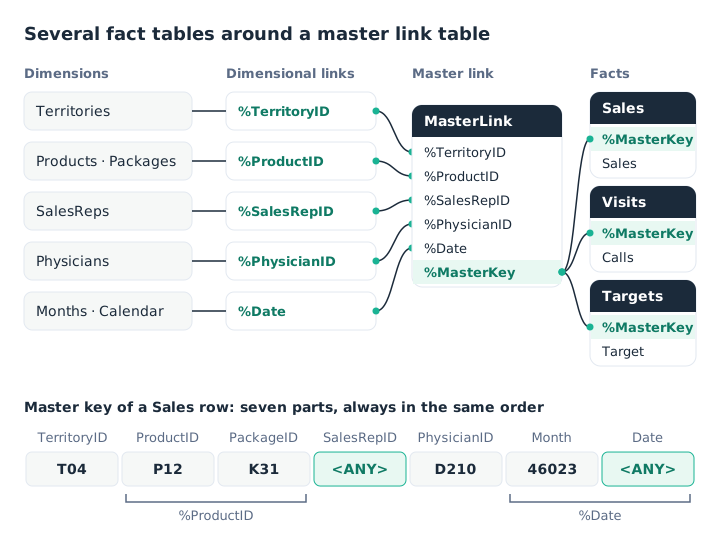
The facts hold only a master key; the link table does the rest.
Each type of table has its role:
- the dimensions hold every selection field, without group keys;
- the dimensional link tables use inclusive symbols, so that
<ANY>joins every element; - the facts contain only the master key and the measures. A key part that does not apply to a table takes the value
<ANY>; - the master link table contains the generic keys and the master key, nothing else.
The master key must be defined identically everywhere. A temporary table guarantees that consistency:
SalesTmp:
LOAD *, %TerritoryID & '|' & %ProductID & '|' & %SalesRepID & '|' &
        %PhysicianID & '|' & %Date AS %MasterKey;
LOAD Sales,
     ApplyMap('PhysicianToTerritory', PhysicianID, Null())             AS %TerritoryID,
     ApplyMap('PackageToProduct', PackageID, Null()) & '|' & PackageID AS %ProductID,
     '<ANY>'                                                           AS %SalesRepID,
     PhysicianID                                                       AS %PhysicianID,
     Num(Month) & '|<ANY>'                                             AS %Date
FROM [lib://Pharma/Sales.qvd] (qvd);

Sales:
LOAD Sales, %MasterKey RESIDENT SalesTmp;

MasterLink:
LOAD DISTINCT %TerritoryID, %ProductID, %SalesRepID, %PhysicianID, %Date, %MasterKey
RESIDENT SalesTmp;

DROP TABLE SalesTmp;
Visits and targets follow the same pattern and are concatenated to MasterLink, which therefore holds only the combinations that exist.
Four practical settings
SET HidePrefix = '%';hides from users every field prefixed with%, and therefore the generic keys.- One variable per symbol (
LET vAny = '<ANY>';,LET vNA = '<N/A>';) avoids typing discrepancies between twoLOADstatements. - Concatenated keys are long.
AutoNumber()replaces them with integers without losing information; Qlik Sense also offers theAutoNumberstatement at the end of the script. ApplyMap()fetches a key missing from the loaded table without a join.
Key takeaways
- One key, several meanings. A generic key value stands for one element, a group or every element.
- A link table between facts and dimension. It translates symbols into real values; groups attach to it, not to the dimension.
- Unambiguous symbols. Each symbol states its field, by prefix or by position.
- Inclusive to secure, exclusive to compare.
<ANY>for authorisations,<N/A>for an aggregated budget. - Only the useful combinations. Bridge tables and link tables are loaded from the facts, with
DISTINCTandExists(). - Keep it for real needs. In most apps, a simple star schema is enough.
Try it in Qlik Sense
This script replays the article’s examples with the data from the diagrams, loaded INLINE: it needs no file and no database. Paste it into the data load editor of an empty app, pick an example with the vExample variable, then reload.
// Generic keys in Qlik Sense: try-it script
// Based on “Generic Keys”, a Technical Brief by Henric Cronström (Qlik, 2012), adapted by HeyData.
// Paste it into the data load editor of an empty app, pick an example,
// reload, then open the data model viewer.
SET vExample = 1;   // 1 to 4

IF $(vExample) = 1 THEN
    // Example 1: a dimensional link table (first diagram)
    ProductGroups:
    LOAD * INLINE [
    ProductGroupID, ProductGroupName
    1, Bikes
    2, Accessories
    ];

    Products:
    LOAD * INLINE [
    ProductID, ProductName, ListPrice, ProductGroupID
    1, Road bike, 1200, 1
    2, City bike, 800, 1
    3, Helmet, 60, 2
    4, Bell, 15, 2
    ];

    ProductLink:
    LOAD '<Product:' & ProductID & '>'    AS %ProductID, ProductGroupID, ProductID
    RESIDENT Products;

    CONCATENATE (ProductLink)
    LOAD '<Group:' & ProductGroupID & '>' AS %ProductID, ProductGroupID, ProductID
    RESIDENT Products;

    CONCATENATE (ProductLink)
    LOAD '<ANY>'                          AS %ProductID, ProductGroupID, ProductID
    RESIDENT Products;

    DROP FIELD ProductGroupID FROM Products;

    Facts:
    LOAD * INLINE [
    %ProductID, Amount
    <Product:3>, 60
    <Group:1>, 2000
    <ANY>, 500
    ];
    // Select ProductID = 3: <Product:3> and <ANY> stay associated; <Group:1> is excluded,
    // because product 3 belongs to group 2.
    // Select ProductID = 1: only <Group:1> and <ANY> do.
END IF

IF $(vExample) = 2 THEN
    // Example 2: inclusive or exclusive symbol (second diagram)
    SET vSymbol = '<N/A>';   // replace with '<ANY>' for the inclusive version

    Products:
    LOAD * INLINE [
    ProductID, ProductName, GroupID
    1, Road bike, 1
    2, City bike, 1
    ];

    ProductLink:
    LOAD GroupID & '|' & ProductID AS %ProductID, GroupID, ProductID
    RESIDENT Products;

    IF '$(vSymbol)' = '<ANY>' THEN
        CONCATENATE (ProductLink)
        LOAD GroupID & '|<ANY>' AS %ProductID, GroupID, ProductID
        RESIDENT Products;
    ELSE
        CONCATENATE (ProductLink)
        LOAD DISTINCT GroupID & '|<N/A>' AS %ProductID, GroupID, Null() AS ProductID
        RESIDENT Products;
    END IF

    DROP FIELD GroupID FROM Products;

    Facts:
    LOAD %ProductID, Type, Amount INLINE [
    %ProductID, Type, Amount
    1|1, Actual, 110
    1|2, Actual, 85
    1|$(vSymbol), Budget, 200
    ];
    // Select ProductID = 1: with <N/A>, the group budget is excluded;
    // with <ANY>, it stays associated.
END IF

IF $(vExample) = 3 THEN
    // Example 3: OR authorisations (third diagram), without Section Access
    AuthorizationTable:
    LOAD USERKEY,
         If(Product = 'ANY', '<ANY>', Product) & '|' &
         If(Customer = 'ANY', '<ANY>', Customer) AS %AuthID;
    LOAD Upper(USERID)               AS USERKEY,
         SubField(PRODUCT_ID, ';')  AS Product,
         SubField(CUSTOMER_ID, ';') AS Customer
    INLINE [
    USERID, PRODUCT_ID, CUSTOMER_ID
    ALAN, ANY, 1;2;3
    DAVID, ANY, 5;7
    DAVID, 6;7, ANY
    ];

    Orders:
    LOAD * INLINE [
    OrderID, CustomerID
    1, 5
    2, 9
    3, 7
    ];

    OrderToCustomer:
    MAPPING LOAD OrderID, CustomerID RESIDENT Orders;

    OrderDetails:
    LOAD *,
         ProductID & '|' & ApplyMap('OrderToCustomer', OrderID, 'NONE') AS AuthID
    INLINE [
    OrderID, ProductID, Amount
    1, 2, 100
    1, 6, 40
    2, 6, 75
    2, 3, 30
    3, 7, 55
    ];

    AuthorizationBridge:
    LOAD DISTINCT * WHERE Exists(%AuthID);
    LOAD AuthID, AuthID AS %AuthID RESIDENT OrderDetails;

    CONCATENATE (AuthorizationBridge)
    LOAD DISTINCT * WHERE Exists(%AuthID);
    LOAD AuthID, '<ANY>|' & ApplyMap('OrderToCustomer', OrderID, 'NONE') AS %AuthID RESIDENT OrderDetails;

    CONCATENATE (AuthorizationBridge)
    LOAD DISTINCT * WHERE Exists(%AuthID);
    LOAD AuthID, ProductID & '|<ANY>' AS %AuthID RESIDENT OrderDetails;

    CONCATENATE (AuthorizationBridge)
    LOAD DISTINCT * WHERE Exists(%AuthID);
    LOAD AuthID, '<ANY>|<ANY>' AS %AuthID RESIDENT OrderDetails;
    // Select USERKEY = DAVID: row 3|9 becomes excluded, as in the diagram.
    // The article's Section Access would turn this selection into data reduction.
    // Only add it to a copy, with an ADMIN row for your own account.
END IF

IF $(vExample) = 4 THEN
    // Example 4: two fact tables around a master link table (fourth diagram)
    PhysicianToTerritory: MAPPING LOAD * INLINE [
    PhysicianID, TerritoryID
    D210, T04
    D211, T05
    ];
    PackageToProduct: MAPPING LOAD * INLINE [
    PackageID, ProductID
    K31, P12
    K32, P13
    ];

    SalesTmp:
    LOAD *, %TerritoryID & '|' & %ProductID & '|' & %SalesRepID & '|' &
            %PhysicianID & '|' & %Date AS %MasterKey;
    LOAD Sales,
         ApplyMap('PhysicianToTerritory', PhysicianID, Null())             AS %TerritoryID,
         ApplyMap('PackageToProduct', PackageID, Null()) & '|' & PackageID AS %ProductID,
         '<ANY>'                                                           AS %SalesRepID,
         PhysicianID                                                       AS %PhysicianID,
         Num(MakeDate(Year, Month)) & '|<ANY>'                             AS %Date
    INLINE [
    PhysicianID, PackageID, Year, Month, Sales
    D210, K31, 2026, 1, 1200
    D211, K32, 2026, 1, 800
    ];

    TargetsTmp:
    LOAD *, %TerritoryID & '|' & %ProductID & '|' & %SalesRepID & '|' &
            %PhysicianID & '|' & %Date AS %MasterKey;
    LOAD Target,
         TerritoryID                           AS %TerritoryID,
         ProductID & '|<ANY>'                  AS %ProductID,
         '<ANY>'                               AS %SalesRepID,
         '<ANY>'                               AS %PhysicianID,
         Num(MakeDate(Year, Month)) & '|<ANY>' AS %Date
    INLINE [
    TerritoryID, ProductID, Year, Month, Target
    T04, P12, 2026, 1, 1000
    T05, P13, 2026, 1, 900
    ];

    Sales:   LOAD Sales, %MasterKey RESIDENT SalesTmp;
    Targets: LOAD Target, %MasterKey RESIDENT TargetsTmp;

    MasterLink:
    LOAD DISTINCT %TerritoryID, %ProductID, %SalesRepID, %PhysicianID, %Date, %MasterKey
    RESIDENT SalesTmp;
    CONCATENATE (MasterLink)
    LOAD DISTINCT %TerritoryID, %ProductID, %SalesRepID, %PhysicianID, %Date, %MasterKey
    RESIDENT TargetsTmp;

    DROP TABLES SalesTmp, TargetsTmp;
    // The key of sale D210 is T04|P12|K31|<ANY>|D210|46023|<ANY>, as in the diagram.
    // Dimensional link tables would then connect each %… key to its dimension.
END IF
Source
“Generic Keys”, QlikView Technical Brief, Henric Cronström (“hic” on Qlik Community), 2 October 2012, published on Qlik Community in the QlikView Documents section. All credit for the original content goes to him; the adaptation to Qlik Sense and any errors in it are HeyData’s.
This article is part of our review of Qlik Technical Briefs: discover the series and its other articles.