
· By HeyData team
Series: Henric Cronström’s Technical Briefs, revisited for Qlik Sense · article 2 of 7
NULL, zero, empty string: handling missing values in Qlik Sense
A customer with no orders, a phone number left blank, a quarter without sales: in Qlik Sense, these three kinds of “nothing” do not behave the same way. Mixing them up skews counts, hides rows and makes some selections impossible. This article sorts them out and gives the techniques to display, test and select the absence of a value.
This article summarises the Technical Brief “NULL and Nothing” by Henric Cronström (Qlik, April 2013) and adapts it to Qlik Sense. His technical papers remain references: we revisit them with today’s tools.
The problem
NULL is not a value: it is the absence of a value. It has no data type, so it is not a dual (neither text nor number). Any field can hold one. Four properties follow:
- an expression containing a NULL does not fail; the NULL propagates through the calculation;
- a NULL never acts as a key between two tables;
- a NULL does not appear in a filter pane and cannot be selected;
- selecting all values of a field is therefore not the same as selecting none: the former excludes the rows where that field is NULL.
The real trap is that nothing comes in several forms, and Qlik Sense treats each one differently.
Five kinds of nothing
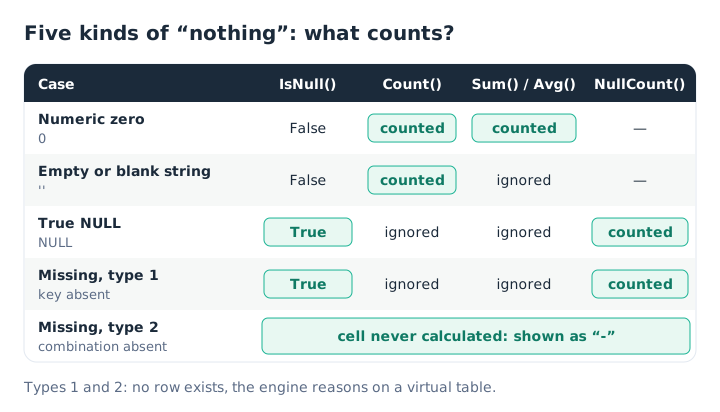
Each kind of nothing reacts differently to aggregation functions.
- A zero is a real value.
IsNull()returns False, and the row is included inCount()as well asAvg(). - An empty string, or one made of spaces, is still a string.
Count()counts it;Sum()andAvg()ignore it because it is not numeric. Beware of blanks:Trim()only removes the regular spaceChr(32), not the non-breaking spaceChr(160), the tabChr(9)or the ideographic spaceChr(12288). - A true NULL sits in a cell of a row that exists. It comes from a database read through ODBC or OLE DB, from a
Joinor aConcatenate(in the Qlik script as in SQL), or from a function that returns NULL:Null(),Only(), a two-parameterIf(). A text file contains none by itself.
The last two forms are missing values: no row exists, so no cell can be marked NULL.
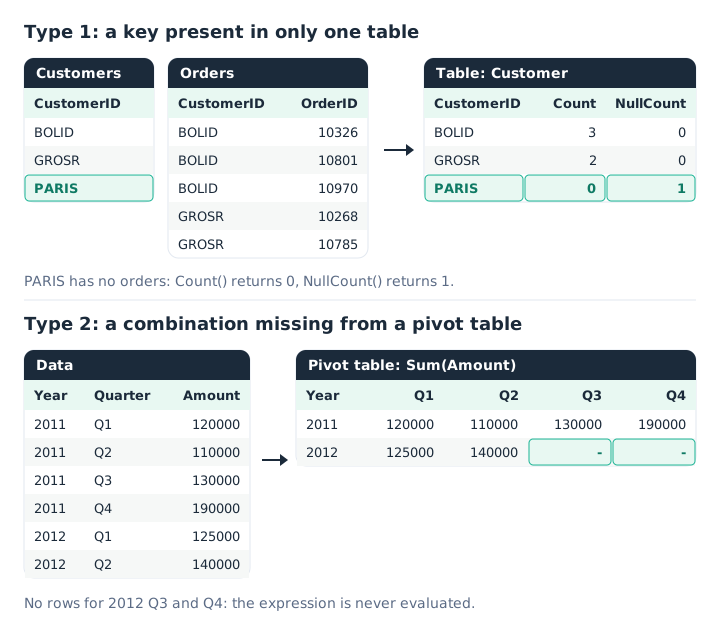
Type 1: a key with no match. Type 2: a combination of dimensions with no data.
Type 1 comes from a difference in cardinality between two tables: a customer exists in Customers but has no row in Orders. To compute a visualization, the engine builds a virtual table in which these fields are NULL: Count(OrderID) returns 0, NullCount(OrderID) returns 1.
Type 2 shows up in a pivot table: the 2012 × Q3 combination does not exist in the data, and a single table is enough to produce it. The engine only loops over existing rows; the cell is never calculated and shows a dash.
How NULL propagates
Qlik Sense uses three-valued logic (Kleene logic): True, False and NULL, meaning “unknown”.
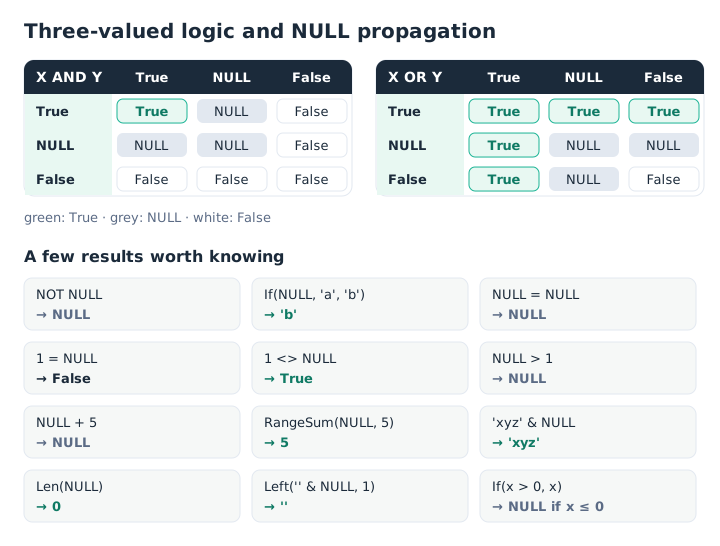
AND and OR in three-valued logic, and a selection of operators and functions.
The rules you need day to day:
If()with a NULL condition returns the else branch, not NULL.=returns False as soon as one operand is NULL, soField = Null()is never true. Test withIsNull(Field).>,<,>=,<=and arithmetic return NULL; theRange*()functions ignore NULLs.LIKEonly returns NULL when the pattern is NULL;&only returns NULL when both sides are.- Aggregations ignore NULLs, except
NullCount().Only()returns NULL when there is no value or several distinct values.
What visualizations show
- In a filter pane, NULL never appears. If every value turns grey after a selection, the answer is NULL. A blank row you can click is not a NULL but an empty string or whitespace.
- In a table, NULL is shown as a dash by default: visible but not clickable.
- On the dimension side, an order with no customer produces a “-” row. To hide it, clear Include null values in the dimension properties.
- On the measure side,
Sum()andCount()return 0 for a customer without orders, which is correct. The Include zero values option, under data handling, hides those rows. - For type 2, the cell stays a dash, never a 0. QlikView could “populate missing cells”; we know of no equivalent option in the Qlik Sense pivot table. Hiding the NULLs of a dimension also hides, by logical inference, the customers who bought nothing.
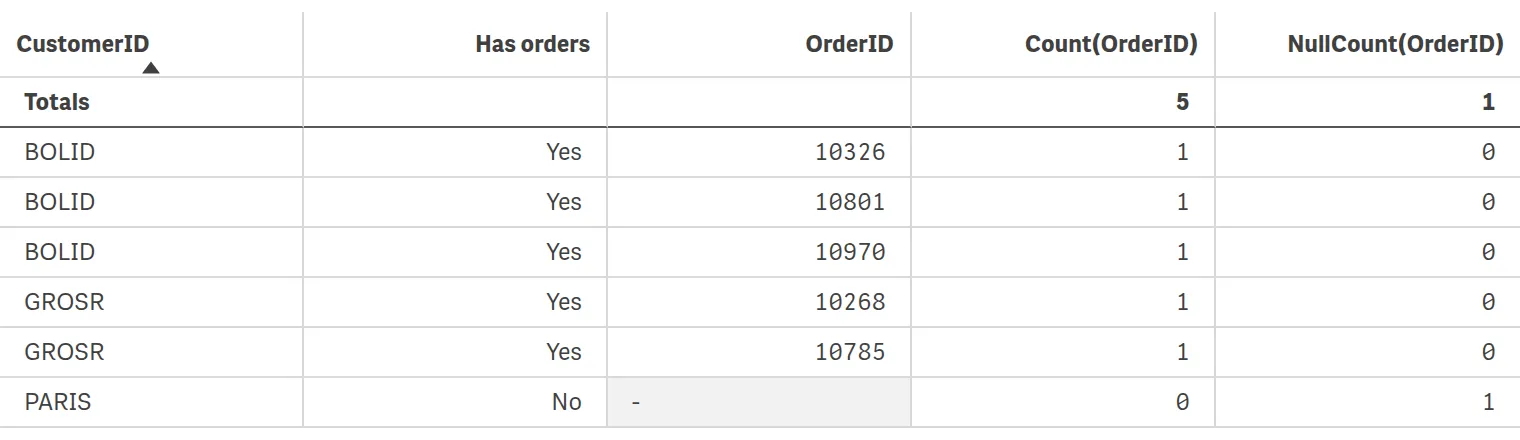
In Qlik Cloud: PARIS has no order. OrderID shows a dash, Count() returns 0 and NullCount() counts the NULL.
Making nothing visible in the script
QlikView’s system variables still exist in the data load editor. NullInterpret turns blanks or a symbol into NULL:
SET NullInterpret = ;    // empty fields in text files
SET NullInterpret = '';  // empty cells in Excel files

Contacts:
LOAD
    PersonID,
    If(Len(Trim(Phone)) > 0, Phone) as Phone   // blanks become NULL
FROM [lib://Sources/contacts.csv]
(txt, utf8, embedded labels, delimiter is ',');
Conversely, NullDisplay gives a label to NULLs coming from ODBC or OLE DB, and NullAsValue with NullValue replaces them in subsequent LOAD statements. Two limits: an optimized QVD load does not transform NULLs, and those created by Join or Concatenate are only partly converted. The fix: a second pass with Resident.
NullAsValue *;
SET NullValue = '<NULL>';

Temp:
LOAD * FROM [lib://Sources/a.qvd] (qvd);
Concatenate (Temp)
LOAD * FROM [lib://Sources/b.qvd] (qvd);

Data:
NoConcatenate
LOAD * Resident Temp;
DROP TABLE Temp;
To test for nothing, IsNull() misses empty strings. Len(Trim(Field)) = 0 covers NULL, empty strings, spaces and missing values; Len(PurgeChar(Field, Chr(9) & Chr(32) & Chr(160) & Chr(12288))) = 0 covers every kind of whitespace. In the script, Exists() detects a missing value by comparing against a field already loaded.
Selecting what does not exist
A NULL cannot be selected: you have to go through another field. Three methods.
Select excluded values. Select all values of Phone, then in PersonID choose Select excluded. The same approach answers “which customers have not bought this product?”. A button whose action selects excluded values saves users the extra step.
Search by expression. In the PersonID filter pane, type =NullCount(Phone)>0. Avoid =IsNull(Phone): without an aggregation, the engine evaluates IsNull(Only(Phone)), which returns True for a person with two numbers and False for a person with one number and one empty row.
Prepare a flag field. It is the clearest option for users:
People:
LOAD
    PersonID,
    If(Len(Trim(Phone)) > 0, 'Yes', 'No') as [Has phone]
FROM [lib://Sources/people.qvd] (qvd);

Orders:   // must be loaded first for Exists() to work
LOAD CustomerID, OrderID, Amount
FROM [lib://Sources/orders.qvd] (qvd);

Customers:
LOAD
    CustomerID,
    CompanyName,
    If(Exists(CustomerID), Dual('Yes', True()), Dual('No', False())) as [Has orders]
FROM [lib://Sources/customers.qvd] (qvd);
Dual() also lets you use [Has orders] as a Boolean in a condition.
NULL and set analysis
The same ideas apply in expressions:
// People without a phone number
Concat({<PersonID = {"=NullCount(Phone)>0"}>} DISTINCT PersonID, ', ')

// Customers without any order: excluded from the customers who have an OrderID
Count({<CustomerID = E({<OrderID = {"*"}>})>} DISTINCT CustomerID)

// Customers who never bought shoes
Count({<CustomerID = E({1<Product = {'Shoe'}>})>} DISTINCT CustomerID)
{"*"} keeps every value except NULL. An empty set, <Product = {}>, means rows without a product; do not confuse it with <Product = >, which simply clears the selection in that field. P() and E() return the possible and excluded values.
Key takeaways
- NULL is neither 0 nor ”. Zero and the empty string are values; only NULL returns True for
IsNull(). - Two kinds of missing values. A key with no match (type 1) is NULL; a missing combination (type 2) is never calculated.
- No testing with
=.Field = Null()is never true: useIsNull()orLen(Trim()) = 0. - Select through another field. Excluded values, an
=NullCount(Field)>0search or a flag field. - Watch out for optimized loads.
NullAsValuedoes not act on an optimized QVD, nor fully afterJoinorConcatenate.
Try it in Qlik Sense
This script replays the article’s examples with the data from the diagrams, loaded INLINE: it needs no file and no database. Paste it into the data load editor of an empty app, pick an example with the vExample variable, then reload.
// NULL and missing values in Qlik Sense: try-it script
// Based on “NULL and Nothing”, a Technical Brief by Henric Cronström (Qlik, 2013), adapted by HeyData.
// Paste it into the data load editor of an empty app, pick an example,
// reload, then build the tables described.
SET vExample = 1;   // 1 to 4

IF $(vExample) = 1 THEN
    // Example 1: type 1 and type 2 missing values (second diagram)
    Orders:   // loaded first for Exists() to work
    LOAD * INLINE [
    CustomerID, OrderID
    BOLID, 10326
    BOLID, 10801
    BOLID, 10970
    GROSR, 10268
    GROSR, 10785
    ];

    Customers:
    LOAD CustomerID,
        If(Exists(CustomerID), Dual('Yes', True()), Dual('No', False())) as [Has orders]
    INLINE [
    CustomerID
    BOLID
    GROSR
    PARIS
    ];

    Data:
    LOAD * INLINE [
    Year, Quarter, Amount
    2011, Q1, 120000
    2011, Q2, 110000
    2011, Q3, 130000
    2011, Q4, 190000
    2012, Q1, 125000
    2012, Q2, 140000
    ];
    // Type 1: table CustomerID, Count(OrderID), NullCount(OrderID) → PARIS: 0 and 1.
    // Type 2: pivot table Year × Quarter, Sum(Amount) → 2012 Q3 and Q4 show “-”.
    // Customers without orders: Count({<CustomerID = E({<OrderID = {"*"}>})>} DISTINCT CustomerID) → 1.
END IF

IF $(vExample) = 2 THEN
    // Example 2: blanks become NULL, and a flag field makes them selectable
    People:
    LOAD PersonID,
        If(Len(Trim(Phone)) > 0, Phone)        as Phone,
        If(Len(Trim(Phone)) > 0, 'Yes', 'No')  as [Has phone]
    INLINE [
    PersonID, Phone
    1, 0601020304
    2,
    3, 0605060708
    4, 0611121314
    4,
    ];
    // Search “=NullCount(Phone)>0” in PersonID → 2 and 4.
    // With “=IsNull(Phone)”, 4 is not found: IsNull(Only(Phone)) is False.
END IF

IF $(vExample) = 3 THEN
    // Example 3: NULLs created by a Concatenate, made visible by NullAsValue
    NullAsValue *;
    SET NullValue = '<NULL>';

    Temp:
    LOAD * INLINE [
    ID, Phone
    1, 0601020304
    ];
    Concatenate (Temp)
    LOAD * INLINE [
    ID, Email
    2, contact@example.com
    ];

    Data:
    NoConcatenate
    LOAD * Resident Temp;
    DROP TABLE Temp;
    // Phone and Email are '<NULL>' where the source table had no such column.
END IF

IF $(vExample) = 4 THEN
    // Example 4: how NULL propagates (third diagram). True = -1, False = 0.
    Tmp:
    LOAD 'NOT NULL'          as Expression, Not Null()             as Value AUTOGENERATE 1;
    Concatenate (Tmp) LOAD 'If(NULL, ''a'', ''b'')' as Expression, If(Null(), 'a', 'b') as Value AUTOGENERATE 1;
    Concatenate (Tmp) LOAD 'NULL = NULL'        as Expression, Null() = Null()      as Value AUTOGENERATE 1;
    Concatenate (Tmp) LOAD '1 = NULL'           as Expression, 1 = Null()           as Value AUTOGENERATE 1;
    Concatenate (Tmp) LOAD '1 <> NULL'          as Expression, 1 <> Null()          as Value AUTOGENERATE 1;
    Concatenate (Tmp) LOAD 'NULL > 1'           as Expression, Null() > 1           as Value AUTOGENERATE 1;
    Concatenate (Tmp) LOAD 'NULL + 5'           as Expression, Null() + 5           as Value AUTOGENERATE 1;
    Concatenate (Tmp) LOAD 'RangeSum(NULL, 5)'  as Expression, RangeSum(Null(), 5) as Value AUTOGENERATE 1;
    Concatenate (Tmp) LOAD '''xyz'' & NULL'     as Expression, 'xyz' & Null()       as Value AUTOGENERATE 1;
    Concatenate (Tmp) LOAD 'Len(NULL)'          as Expression, Len(Null())          as Value AUTOGENERATE 1;

    Propagation:
    NoConcatenate
    LOAD Expression, If(IsNull(Value), 'NULL', Text(Value)) as Result
    Resident Tmp;
    DROP TABLE Tmp;
    // Table Expression, Result: compare with the diagram.
END IF
Source
“NULL and Nothing”, QlikView Technical Brief, Henric Cronström (“hic” on Qlik Community), 26 April 2013, published on Qlik Community in the QlikView Documents section. All credit for the original content goes to him; the adaptation to Qlik Sense, and any errors in it, are HeyData’s. This article is part of our review of the Technical Briefs: discover the series.