
· By HeyData team
Series: Lesser-known Qlik Sense functions and keywords: a series · article 6 of 13
CrossTable in Qlik Sense: unpivoting a cross table at load time
The budget comes from Excel with one column per month: Jan 2026, Feb 2026, Mar 2026… Loaded as is, it gives one field per month, which you cannot filter by period, link to the calendar or sum over the year. It needs to be unpivoted: columns turned into rows. The CrossTable prefix does it during the load.
This article is part of our series on lesser-known Qlik Sense functions and keywords. It is based on the Qlik help; links are at the end of the article.
The principle
CrossTable goes in front of a LOAD. It keeps the first columns as they are: these are the qualifying fields. Every other column becomes a row. Its header goes into an attribute field, and its value into a data field.
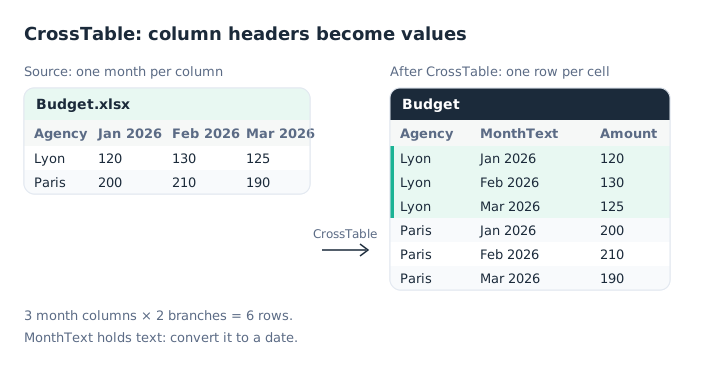
Three month columns and two branches give six rows.
Budget:
CrossTable (MonthText, Amount)
LOAD * INLINE [
Agency, Jan 2026, Feb 2026, Mar 2026
Lyon, 120, 130, 125
Paris, 200, 210, 190
];
The full syntax:
CrossTable (attribute_field, data_field [, n]) LOAD …attribute_fieldreceives the headers of the unpivoted columns (MonthText).data_fieldreceives the cell values (Amount).nis the number of qualifying fields, 1 by default.
The benefit of LOAD *: next month, an Apr 2026 column added to the file is picked up without touching the script.
Several qualifying fields
When the source has several descriptive columns, such as the branch and the type (budget or actual), give their number. These n columns must come first in the LOAD.
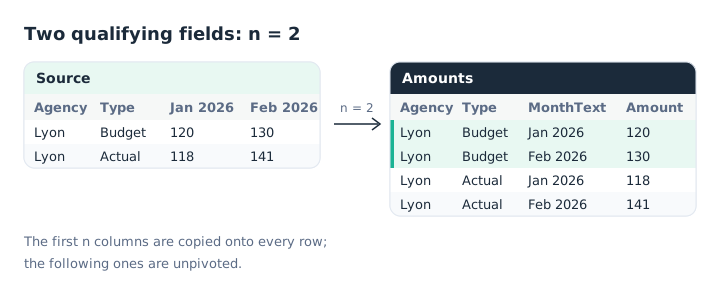
With n = 2, the branch and the type are copied onto every row.
Amounts:
CrossTable (MonthText, Amount, 2)
LOAD * INLINE [
Agency, Type, Jan 2026, Feb 2026
Lyon, Budget, 120, 130
Lyon, Actual, 118, 141
];
If the descriptive column is not first in the file, replace LOAD * with a field list that puts it first. You then lose the automatic pick-up of new columns.
Converting the attribute
MonthText holds the header text: 'Jan 2026' is neither a date nor a number. The conversion happens in a second pass: CrossTable first loads a temporary table, TmpBudget, which is then read again:
Budget:
LOAD Agency,
     MakeDate(Right(MonthText, 4),
              Match(Left(MonthText, 3), 'Jan','Feb','Mar','Apr','May','Jun',
                                        'Jul','Aug','Sep','Oct','Nov','Dec')) as Month,
     Amount
RESIDENT TmpBudget;
DROP TABLE TmpBudget;
A common pitfall: Date#(MonthText, 'MMM YYYY') depends on the app’s MonthNames variable. In an app with French regional settings, it usually reads janv.;févr.;mars;…, and 'Jan 2026' is not recognised. Match() and MakeDate() depend on no regional setting.
This second pass is also the place to clean up: drop empty cells (WHERE Len(Trim(Amount)) > 0), or total columns the file adds at the end of each row.
Without a script: the data manager
The data manager offers the same operation without code: the Unpivot option of the table editor turns the selected columns into rows. The script is still the better choice when you also need to convert the attribute or filter.
CrossTable is the reverse of the Generic prefix: one turns columns into rows, the other rows into columns.
Key takeaways
- Columns into rows. CrossTable unpivots a cross table during the load.
- Three parameters. The attribute field, the data field, and
nqualifying fields, 1 by default. - Qualifiers first. The first
ncolumns of theLOADare copied; all the others are unpivoted. - The attribute is text. Convert it in a second pass, without relying on
MonthNames. - LOAD * follows the file. A new month column is picked up without changing the script.
Try it in Qlik Sense
This script replays the article’s examples with the data from the diagrams, loaded INLINE: it needs no file and no database. Paste it into the data load editor of an empty app, pick an example with the vExample variable, then reload.
// CrossTable in Qlik Sense: try-it script (HeyData)
// Paste it into the data load editor of an empty app, pick an example,
// reload, then preview the table in the data model viewer.
SET vExample = 1;   // 1 to 3

IF $(vExample) = 1 THEN
    // Example 1: one month per column, then converting the month (first diagram)
    TmpBudget:
    CrossTable (MonthText, Amount)
    LOAD * INLINE [
    Agency, Jan 2026, Feb 2026, Mar 2026
    Lyon, 120, 130, 125
    Paris, 200, 210, 190
    ];

    Budget:
    LOAD Agency,
         Date(MakeDate(Right(MonthText, 4),
              Match(Left(MonthText, 3), 'Jan','Feb','Mar','Apr','May','Jun',
                                        'Jul','Aug','Sep','Oct','Nov','Dec')), 'YYYY-MM') as Month,
         Amount
    RESIDENT TmpBudget;
    DROP TABLE TmpBudget;
    // 6 rows; Month is a real date (2026-01, 2026-02, 2026-03).
END IF

IF $(vExample) = 2 THEN
    // Example 2: two qualifying fields (second diagram)
    Amounts:
    CrossTable (MonthText, Amount, 2)
    LOAD * INLINE [
    Agency, Type, Jan 2026, Feb 2026
    Lyon, Budget, 120, 130
    Lyon, Actual, 118, 141
    ];
    // 4 rows: Agency and Type are copied onto every row.
END IF

IF $(vExample) = 3 THEN
    // Example 3: the qualifier is not first, and one cell is empty
    TmpBudget:
    CrossTable (MonthText, Amount)
    LOAD Agency, [Jan 2026], [Feb 2026] INLINE [
    Jan 2026, Agency, Feb 2026
    120, Lyon, 130
    200, Paris,
    ];

    Budget:
    NoConcatenate
    LOAD * RESIDENT TmpBudget
    WHERE Len(Trim(Amount)) > 0;
    DROP TABLE TmpBudget;
    // The field list puts Agency first; the empty Paris cell is dropped.
END IF
Sources
- Qlik Cloud help: Crosstable, syntax and examples.
- Qlik Cloud help: Unpivoting crosstab data in the data manager.
Text and examples are by HeyData. This article is part of our series on lesser-known Qlik Sense functions and keywords: explore the series.