
· By HeyData team
Series: Lesser-known Qlik Sense functions and keywords: a series · article 7 of 13
The Generic prefix in Qlik Sense: from attribute-value data to dimensions
Some sources do not store characteristics in columns but in rows: one row for the product’s colour, one for its size, one for its status. This is the attribute-value model (EAV, entity-attribute-value), common in PIM systems, CRM custom fields or settings files. Loaded as is, it does not let you use “Color” as a dimension. The Generic prefix turns each attribute into a real field.
This article is part of our series on lesser-known Qlik Sense functions and keywords. It is based on the Qlik help and on a post by Henric Cronström; links are at the end of the article.
Without Generic: one column for everything
With the table as is, the colour is just one value among others in the Value field. To count red products, every expression has to filter the attribute:
Count({<Attribute = {'Color'}, Value = {'Red'}>} DISTINCT ProductID)That works for a one-off measure, but not for a dimension: you cannot put “Color” on rows and “Size” on columns of a pivot table.
Generic: one table per attribute
Placed in front of a LOAD of three fields, the key, the attribute and the value, Generic creates one table per distinct attribute value. Each table holds the key and a field named after the attribute. The table name combines the LOAD label and the attribute: Products.Color, Products.Size, Products.Status.
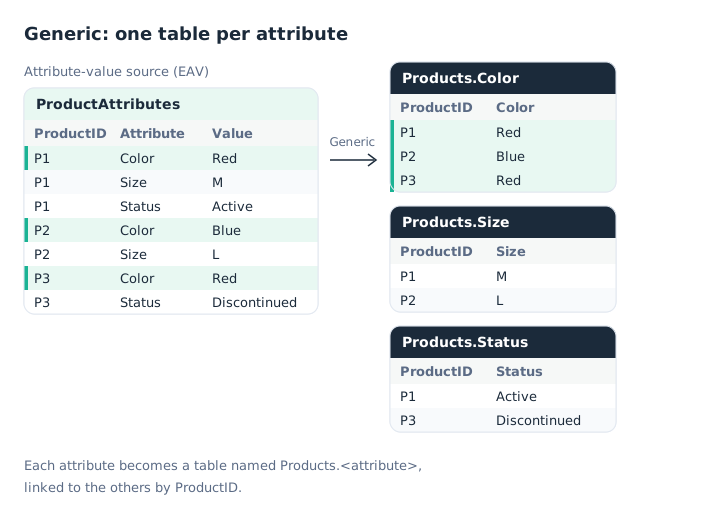
Three attributes, three tables linked by ProductID.
Products:
Generic
LOAD * INLINE [
ProductID, Attribute, Value
P1, Color, Red
P1, Size, M
P1, Status, Active
P2, Color, Blue
P2, Size, L
P3, Color, Red
P3, Status, Discontinued
];
The tables are linked by ProductID. Color, Size and Status are now ordinary fields: dimensions, filters, selections. Each table only holds the products that have the attribute: P2 has no status, so it is simply missing from Products.Status.
Generic is the reverse of CrossTable: one turns rows into columns, the other columns into rows.
Combining into a single table
This split model is correct and memory-efficient. But with thirty attributes, the data model viewer shows thirty tables. In the post “The Generic Load”, Henric Cronström suggests a loop that attaches these tables to a reference table with LEFT JOIN. Here is a compact version:
Products:
LOAD DISTINCT ProductID RESIDENT TmpAttributes;

FOR i = NoOfTables() - 1 TO 0 STEP -1
    LET vTable = TableName($(i));
    IF WildMatch('$(vTable)', 'Attr.*') THEN
        LEFT JOIN (Products) LOAD * RESIDENT [$(vTable)];
        DROP TABLE [$(vTable)];
    END IF
NEXT i
The loop starts from the last table, because each DROP TABLE shifts the numbers of the following ones. The table prefix (Attr.) limits it to the tables produced by Generic. The first table, Products, is the reference: every product is in it, even those with no attribute at all.
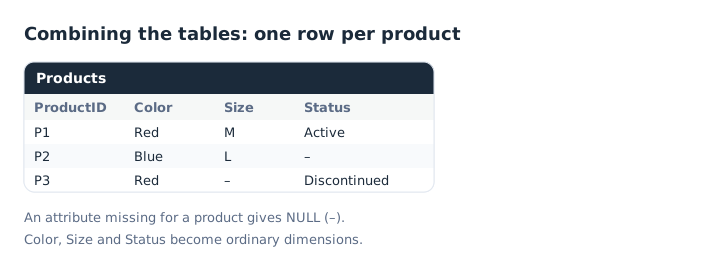
After combining, a missing attribute is NULL.
The Qlik help describes a variant with OUTER JOIN and a RENAME TABLE. The LEFT JOIN loop has the advantage of handling any number of attributes without naming them.
Points to watch
- One value per key and attribute. If a product has two colours,
Products.Colorhas two rows for it. After combining, the product appears twice, and any measures in that table are duplicated. Check the source, or keep such multi-valued attributes in their own table. - Attribute names become field names. A “Creation date” attribute gives a
[Creation date]field. Clean the labels before theGenericif needed, with a mapping. - Types follow the values. All values go through the same
Valuefield; a date or a number may arrive as text. Convert them after combining. - Keeping the split model is fine. For a handful of attributes, separate tables work very well: combining is a reading comfort, not a requirement.
Key takeaways
- From attribute-value to fields. Generic creates one field per attribute, usable as a dimension.
- One table per attribute. Named
Label.Attribute, linked to the others by the key. - The reverse of CrossTable. Generic turns rows into columns.
- Combine with a loop.
LEFT JOINeach table onto a reference table, starting from the last one. - One value per attribute. A multi-valued attribute duplicates rows when combining.
Try it in Qlik Sense
This script replays the article’s examples with the data from the diagrams, loaded INLINE: it needs no file and no database. Paste it into the data load editor of an empty app, pick an example with the vExample variable, then reload.
// The Generic prefix in Qlik Sense: try-it script (HeyData)
// Paste it into the data load editor of an empty app, pick an example,
// reload, then open the data model viewer.
SET vExample = 1;   // 1 to 3

TmpAttributes:
LOAD * INLINE [
ProductID, Attribute, Value
P1, Color, Red
P1, Size, M
P1, Status, Active
P2, Color, Blue
P2, Size, L
P3, Color, Red
P3, Status, Discontinued
];

IF $(vExample) = 1 THEN
    // Example 1: without Generic, a single attribute-value table
    // Table: dimension ProductID, measure Count({<Attribute = {'Color'}, Value = {'Red'}>} DISTINCT ProductID)
    RENAME TABLE TmpAttributes TO ProductAttributes;
END IF

IF $(vExample) = 2 THEN
    // Example 2: Generic creates one table per attribute (first diagram)
    Products:
    Generic
    LOAD ProductID, Attribute, Value RESIDENT TmpAttributes;
    DROP TABLE TmpAttributes;
    // 3 tables: Products.Color, Products.Size, Products.Status.
END IF

IF $(vExample) = 3 THEN
    // Example 3: combining the tables into one (second diagram)
    Attr:
    Generic
    LOAD ProductID, Attribute, Value RESIDENT TmpAttributes;

    Products:
    LOAD DISTINCT ProductID RESIDENT TmpAttributes;
    DROP TABLE TmpAttributes;

    FOR i = NoOfTables() - 1 TO 0 STEP -1
        LET vTable = TableName($(i));
        IF WildMatch('$(vTable)', 'Attr.*') THEN
            LEFT JOIN (Products) LOAD * RESIDENT [$(vTable)];
            DROP TABLE [$(vTable)];
        END IF
    NEXT i
    // 1 table, 3 rows: P2 has no Status, P3 has no Size.
END IF
Sources
- Qlik Cloud help: Generic, syntax, examples and combining with
OUTER JOIN. - Henric Cronström, Qlik Design Blog: The Generic Load, March 2014.
Text and examples are by HeyData. This article is part of our series on lesser-known Qlik Sense functions and keywords: explore the series.