· By HeyData team
Series: Lesser-known Qlik Sense functions and keywords: a series · article 8 of 13
The Semantic prefix in Qlik Sense: moving from parent to child in one click
In an organisation chart, you sometimes want to move step by step: start from the sales department, see its teams, then the branches of one of them. Hierarchy provides levels and HierarchyBelongsTo whole subtrees, but neither lets you “go down one notch” from the current selection. That is the job of the Semantic prefix, one of the least-known keywords of the script.
This article is part of our series on lesser-known Qlik Sense functions and keywords. It is based on the Qlik help, which is, as far as we know, the only detailed documentation of the prefix; links are at the end of the article.
The principle: a table of relations
Semantic goes in front of a LOAD of three or four fields, in a fixed order:
- an object;
- the name of the relation, read from the first object to the second;
- the related object;
- optional: the name of the relation in the other direction.
The prefix creates a special field, here Relation, whose values are the relation names. Selecting one of these values moves from the selected objects to the related ones.
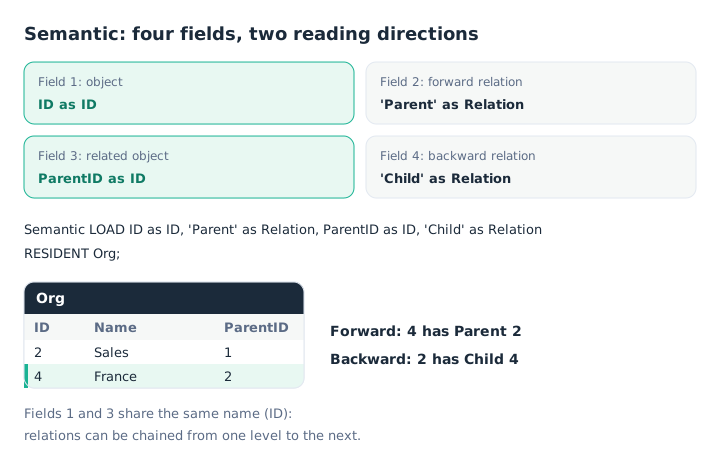
One row of an organisation chart, read both ways.
Org:
LOAD ID, Name, If(Len(ParentID), ParentID) as ParentID
INLINE [
ID, Name, ParentID
1, Management,
2, Sales, 1
3, Operations, 1
4, France, 2
5, Germany, 2
6, Logistics, 3
7, Lyon, 4
8, Paris, 4
];

Relations:
Semantic
LOAD ID as ID, 'Parent' as Relation, ParentID as ID, 'Child' as Relation
RESIDENT Org;
The detail that matters: fields 1 and 3 share the same name, ID, the one in the Org table. The Qlik help explains that this is what lets relations be chained: the result of one click becomes the starting point of the next. With two different names, you only get direct neighbours, which the help considers of little practical use.
Moving step by step
On a sheet, add a table with ID and Name, and a filter pane on Relation. Select “Sales”, then click Child: the table now shows only France and Germany. A second click on Child goes further down: Lyon and Paris. Parent goes up one level.
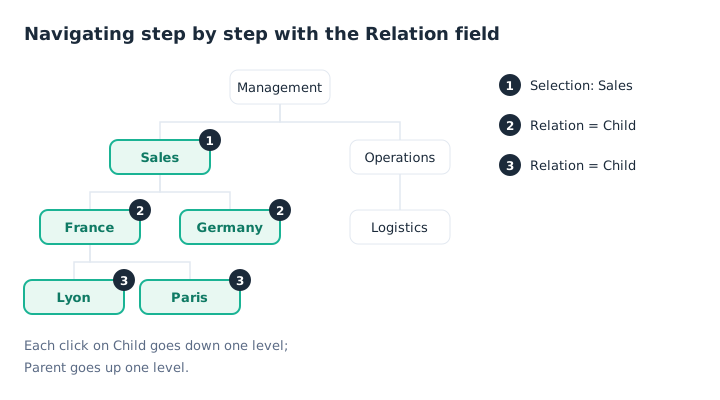
Each click on Child goes down one level.
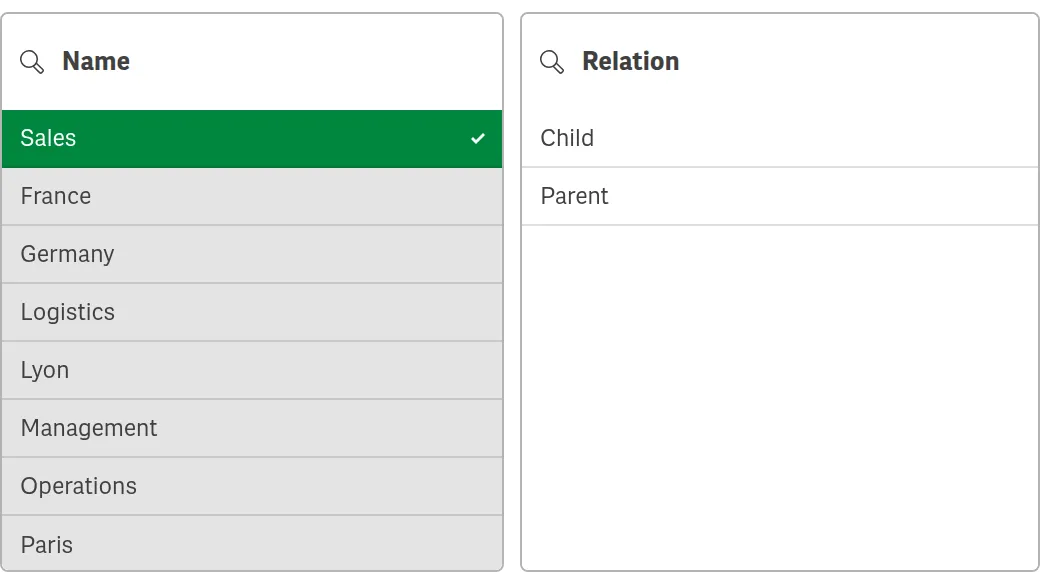
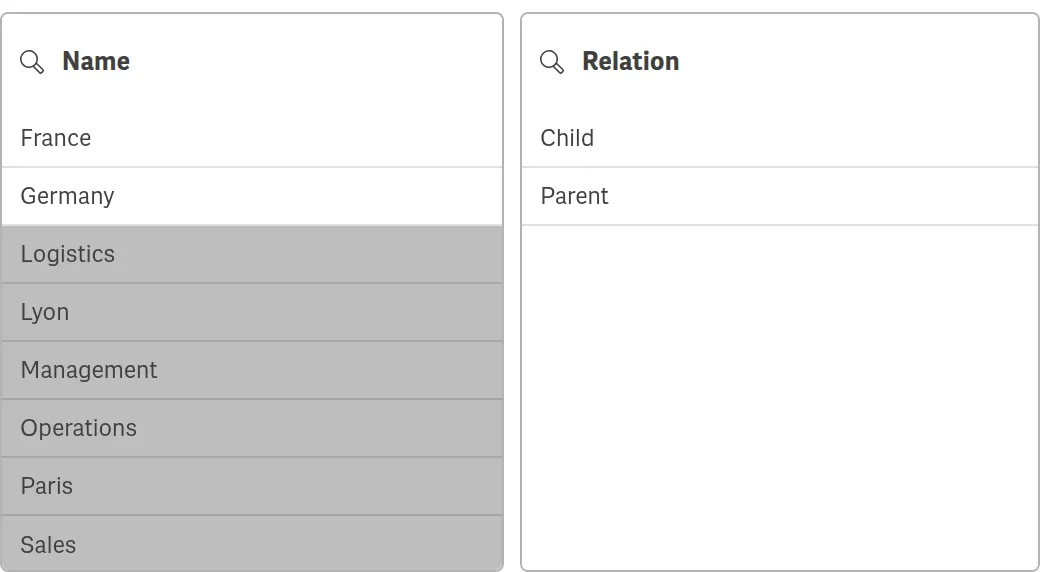
In Qlik Cloud: Sales selected, then Relation = Child. Only the two departments under Sales remain.
This is navigation, not aggregation: Semantic computes neither levels nor paths. To sum the sales of a whole branch, HierarchyBelongsTo remains the right tool (see our article on hierarchies).
Three fields: a single label
Without a fourth field, the relation name is used in both directions. Qlik then turns it into two arrowed values, one per direction: replaced by -> and <- replaced by. This is handy for a relation that is not a tree, such as one product replacing another:
Succession:
Semantic
LOAD OldProduct as Product, 'replaced by' as Relation, NewProduct as Product
INLINE [
OldProduct, NewProduct
P1, P2
P2, P3
];
From P1, replaced by -> leads to P2, then to P3. In the other direction, <- replaced by goes back to the predecessors. Nothing forces relations to form a tree: a product can replace two references, a document can cite several. Semantic describes a graph, whereas Hierarchy requires a single parent per node.
Semantic or Hierarchy?
| Need | Tool |
|---|---|
| Levels for a pivot table, a path | Hierarchy |
| Selecting a whole branch, access rights | HierarchyBelongsTo |
| Moving one level at a time from a selection | Semantic |
| Relations that do not form a tree | Semantic |
All three can live in the same app, on the same source table.
Key takeaways
- A field to navigate. Semantic creates a field whose values, such as Parent and Child, move the selection to the related objects.
- Three or four fields, in order. Object, relation, related object, then the inverse relation if needed.
- The same name for the objects. Fields 1 and 3 must share a name to chain clicks.
- A graph, not just a tree. Several links per object are allowed.
- Navigation, not calculation. For levels and subtrees, Hierarchy and HierarchyBelongsTo remain the right tools.
Try it in Qlik Sense
This script replays the article’s examples with the data from the diagrams, loaded INLINE: it needs no file and no database. Paste it into the data load editor of an empty app, pick an example with the vExample variable, then reload.
// The Semantic prefix in Qlik Sense: try-it script (HeyData)
// Paste it into the data load editor of an empty app, pick an example,
// reload, then add a table and a filter pane on Relation.
SET vExample = 1;   // 1 to 3

IF $(vExample) <> 2 THEN
    Org:
    LOAD ID, Name, If(Len(ParentID), ParentID) as ParentID
    INLINE [
    ID, Name, ParentID
    1, Management,
    2, Sales, 1
    3, Operations, 1
    4, France, 2
    5, Germany, 2
    6, Logistics, 3
    7, Lyon, 4
    8, Paris, 4
    ];
END IF

IF $(vExample) = 1 THEN
    // Example 1: four fields, Parent and Child (first and second diagrams)
    Relations:
    Semantic
    LOAD ID as ID, 'Parent' as Relation, ParentID as ID, 'Child' as Relation
    RESIDENT Org;
    // Table ID, Name; filter pane Relation.
    // Select Sales in Name, then Child: France and Germany. Child again: Lyon and Paris.
END IF

IF $(vExample) = 2 THEN
    // Example 2: three fields, a relation that is not a tree
    Products:
    LOAD * INLINE [
    Product, ProductName
    P1, Model 2024
    P2, Model 2025
    P3, Model 2026
    ];

    Succession:
    Semantic
    LOAD OldProduct as Product, 'replaced by' as Relation, NewProduct as Product
    INLINE [
    OldProduct, NewProduct
    P1, P2
    P2, P3
    ];
    // Select P1, then “replaced by ->”: P2. “<- replaced by” goes back to predecessors.
END IF

IF $(vExample) = 3 THEN
    // Example 3: Semantic and Hierarchy on the same source
    Relations:
    Semantic
    LOAD ID as ID, 'Parent' as Relation, ParentID as ID, 'Child' as Relation
    RESIDENT Org;

    Levels:
    Hierarchy (ID, NodeParentID, NodeName)
    LOAD ID, ParentID as NodeParentID, Name as NodeName
    RESIDENT Org;
    // Levels, linked to Org by ID, holds NodeName1 to NodeName4; Relation is for navigating.
END IF
Sources
- Qlik Cloud help: Semantic, syntax, role of the four fields and navigation example.
- Qlik Cloud help: Hierarchy and HierarchyBelongsTo, for comparison.
Text and examples are by HeyData. This article is part of our series on lesser-known Qlik Sense functions and keywords: explore the series.